How do I change my notification preferences?
You can choose which types of push notification Ripledd sends you in Settings > Notifications. These preferences apply to the account you are using on this device. If you use Ripledd on another device, review its preferences separately.
1. Open Settings from your profile
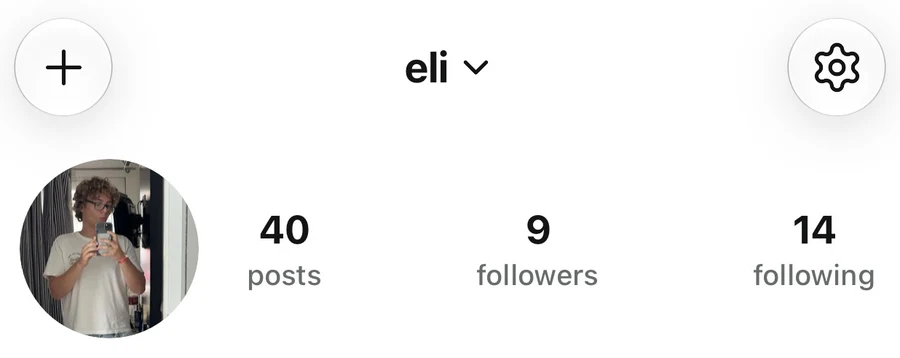
Tap your profile picture on the right side of the bottom navigation bar. On your profile, tap the gear icon in the top-right corner to open Settings.
2. Open Notifications
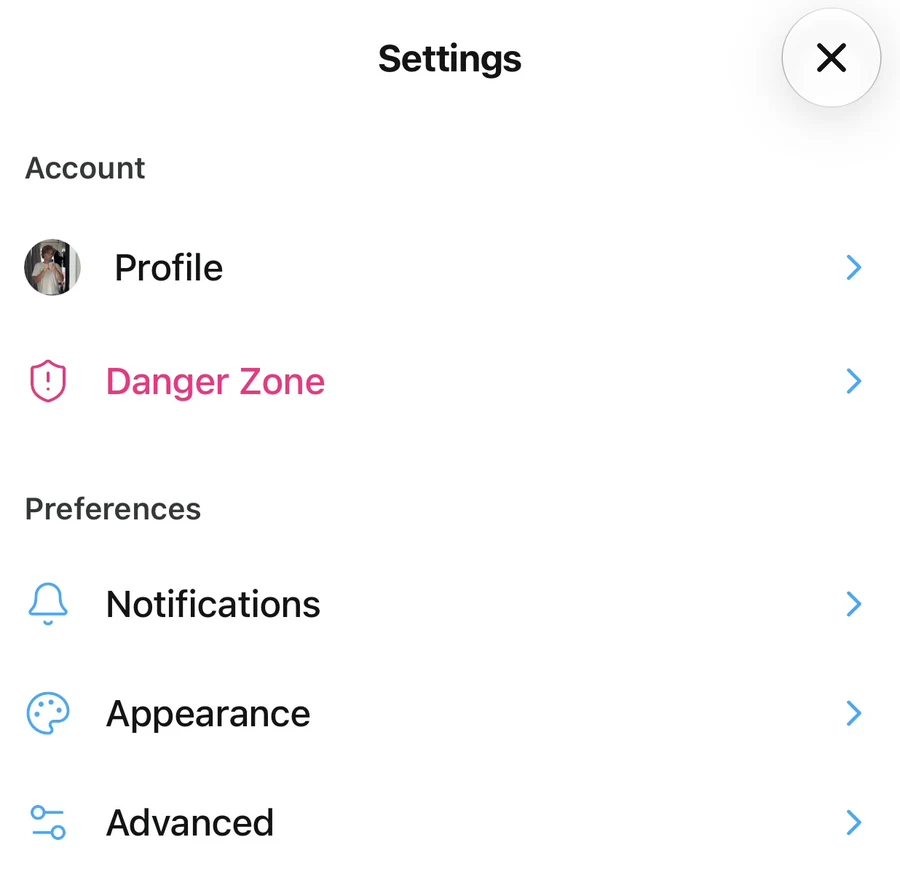
Under Preferences, tap Notifications.
3. Choose what you get notified about
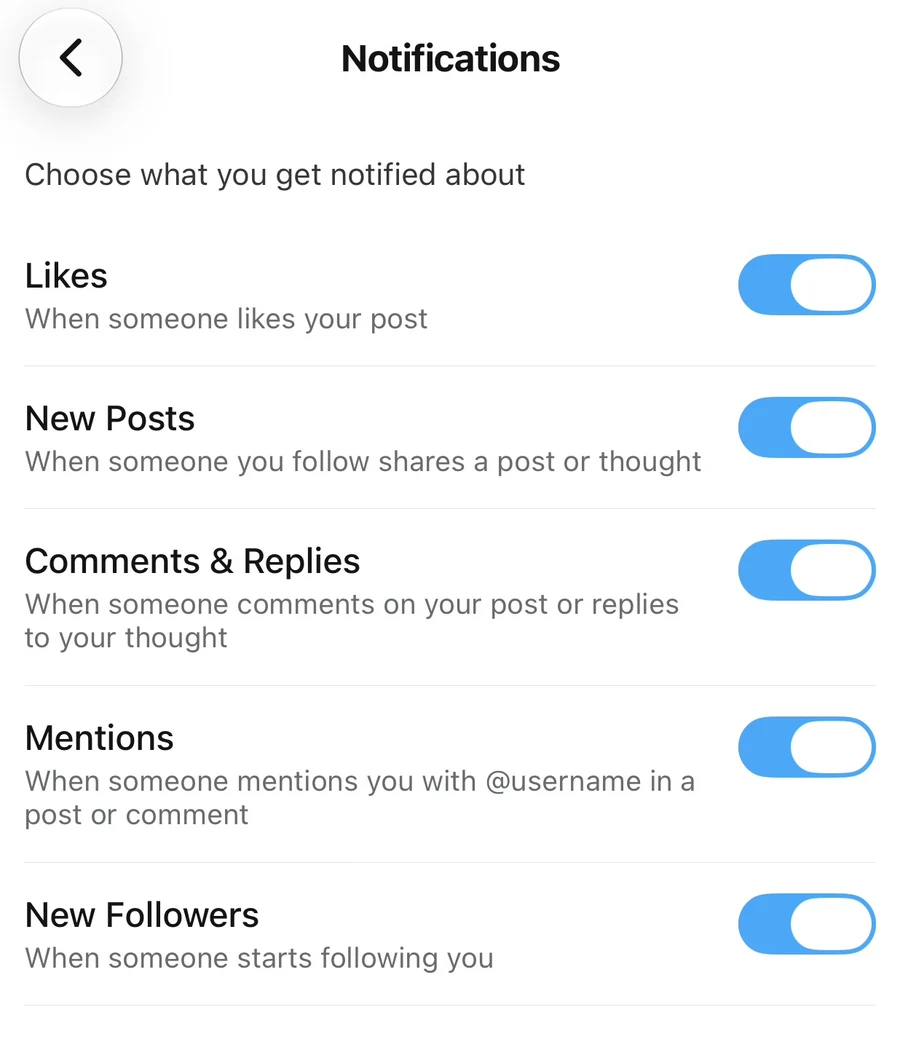
Tap the switch beside each category to turn it on or off. A switch with a colored background and its thumb on the right is on. A switch with a gray background and its thumb on the left is off.
| Category | What it covers |
|---|---|
| Likes | Someone likes your post. |
| New Posts | Someone you follow shares a photo or thought post. |
| Comments & Replies | Someone comments on your post or replies to your thought. |
| Mentions | Someone mentions you with @username in a post or comment. |
| New Followers | Someone starts following you. |
You can keep some categories on and turn others off. For example, you might keep Comments & Replies enabled while turning off Likes.
Do I need to save my changes?
Each change saves automatically. Wait for it to finish before changing another switch, then use the back arrow to return to Settings. You can revisit this page at any time.
If the app shows Could not save notification settings, that change was not saved. Try again shortly and check the switch afterward.
What if push notifications are off?
If the page shows Push notifications are off, turn on a category to request notification permission. Allow notifications when your device asks, then review all five switches to choose what you want to receive.
If you previously declined permission, tap the Push notifications are off notice to open your device’s system settings. Allow notifications for Ripledd, then return to the app and check your preferences.
What if I cannot change a switch?
Switches are temporarily unavailable while a change is saving. If the page shows Could not load notification settings. Tap to retry., tap that message to reload your preferences.
If notifications still do not arrive, check that your preferred categories are enabled and that your device allows notifications for Ripledd. If the problem continues, contact the Support Center with your device details and any error message shown.
Still stuck? Head to the Support Center and send us the details.