How do I change the app’s theme?
You can change Ripledd’s theme mode and accent color in Appearance settings. Your choices take effect immediately and are saved on your device.
1. Open Settings from your profile
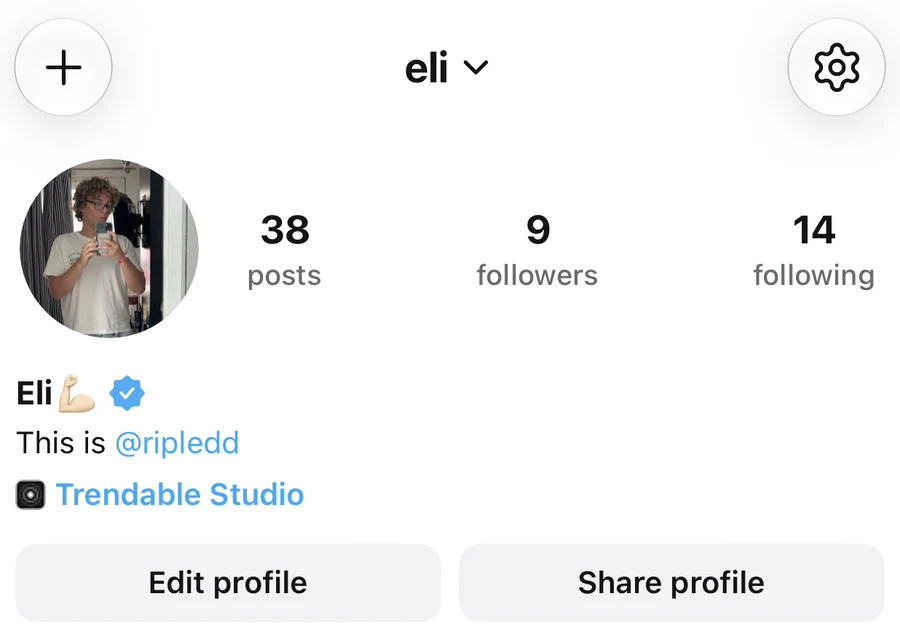
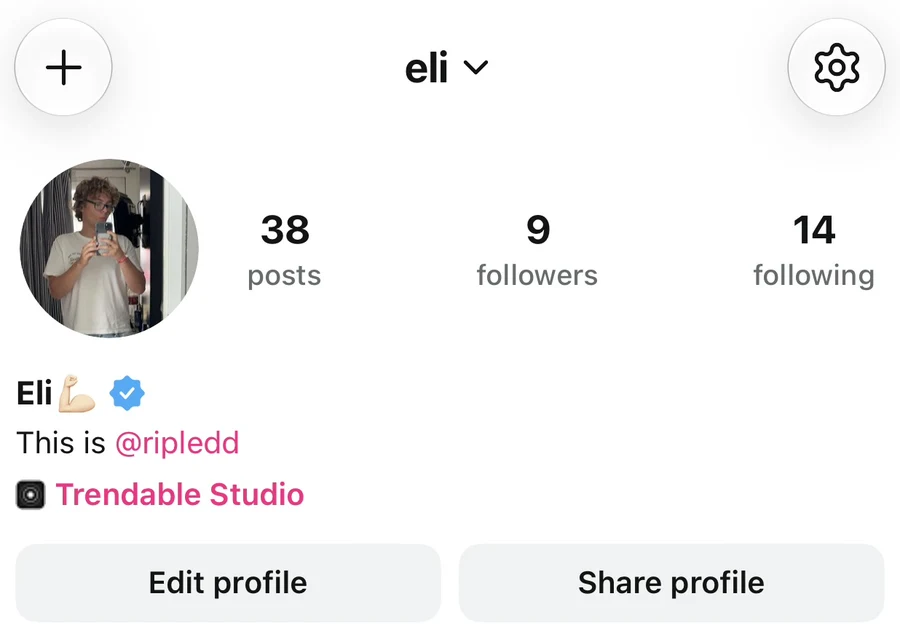
Tap your profile picture on the right side of the bottom navigation bar. On your profile, tap the gear icon in the top-right corner to open Settings.
2. Open Appearance
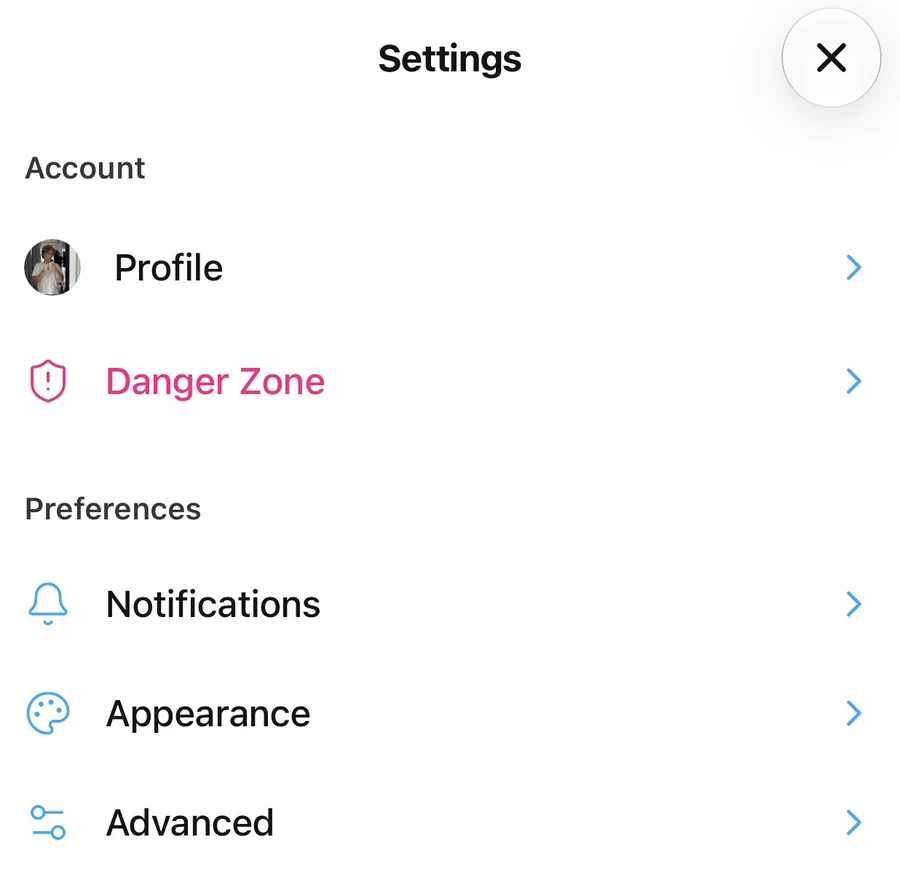
Under Preferences, tap Appearance.
3. Choose a theme mode
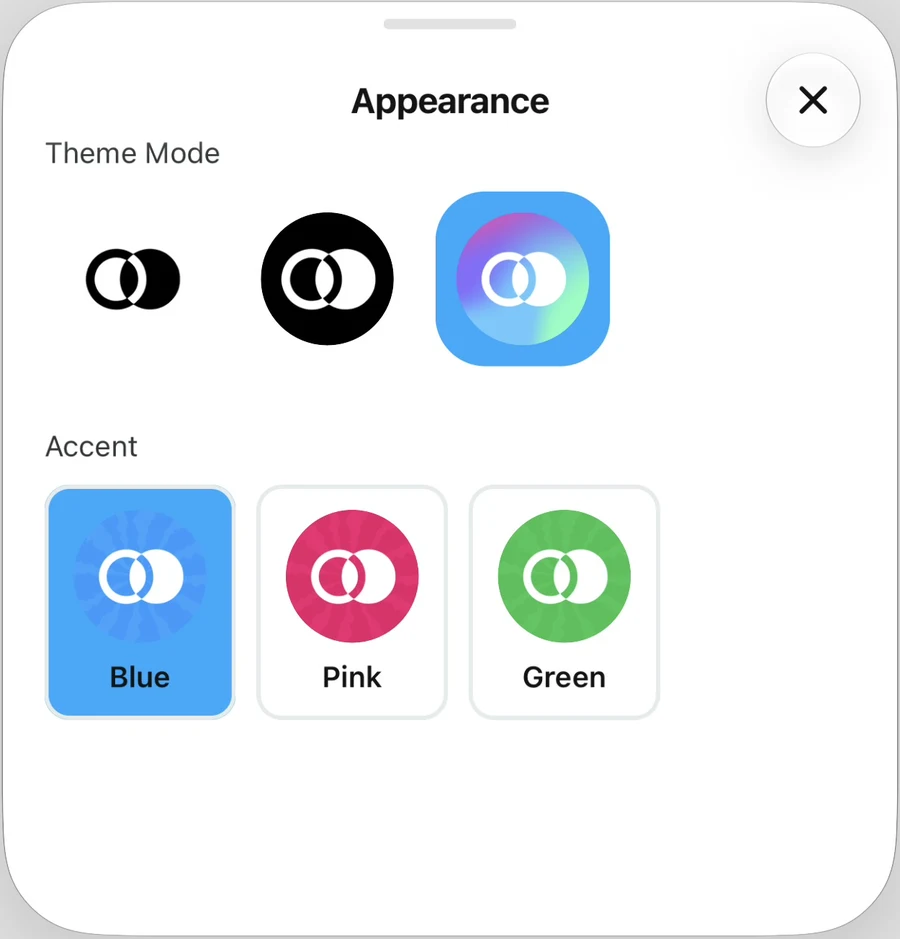
Under Theme Mode, tap one of the three icons. From left to right, they are:
- Light: use a light background throughout the app.
- Dark: use a dark background throughout the app.
- Automatic: follow your device’s light or dark appearance setting. This is the icon with the multicolored gradient.
The selected option has a background in your current accent color. In the screenshot below, Automatic is selected.
4. Choose an accent color
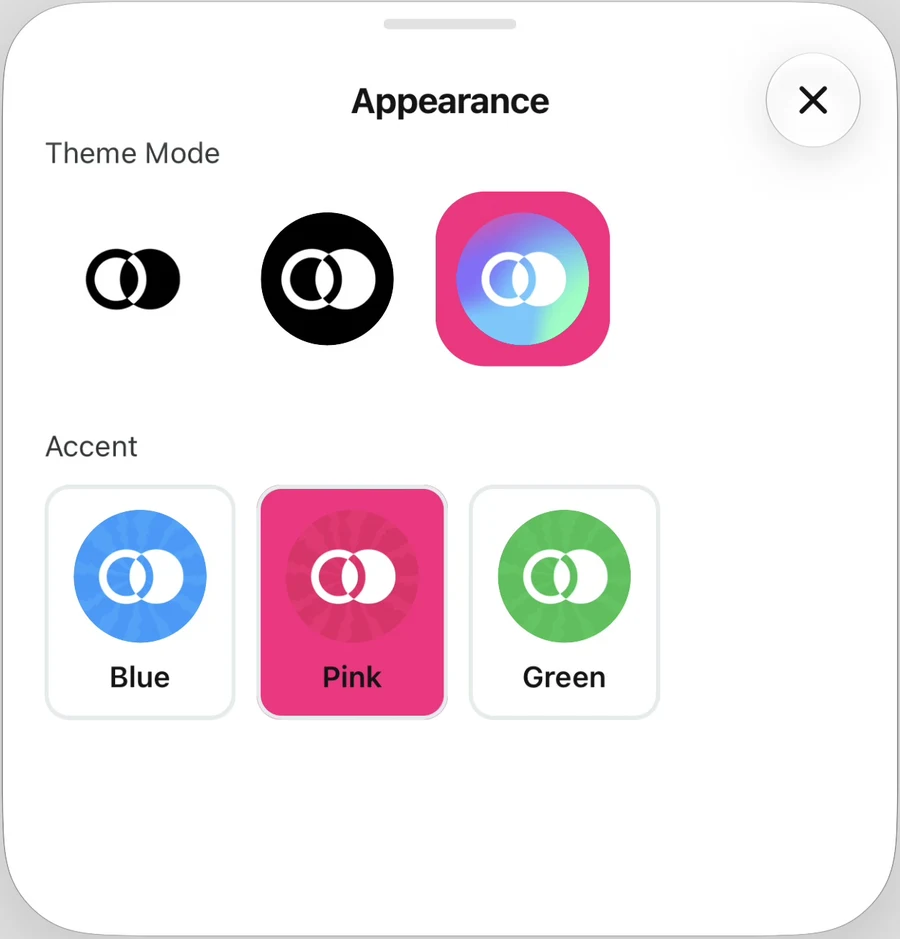
Under Accent, tap Blue, Pink, or Green. The accent changes the color of interface details such as links, icons, and selected controls.
You can choose an accent independently of the theme mode. For example, selecting Pink does not change whether you use Light, Dark, or Automatic.
5. Return to the app
Tap the X in the Appearance panel, then close Settings. There is no Save button to press. Your changes are already applied.
Why does the theme change on its own?
When Automatic is selected, Ripledd follows your device’s appearance setting, including changes made by a light or dark mode schedule. Choose Light or Dark if you want the app to keep the same theme regardless of your device setting.
To change your choices again, return to Settings > Appearance at any time.
Still stuck? Head to the Support Center and send us the details.