How do I create a thought post?
A thought post lets you share a written update on Ripledd. You can post text on its own without adding a photo.
1. Open the post creator
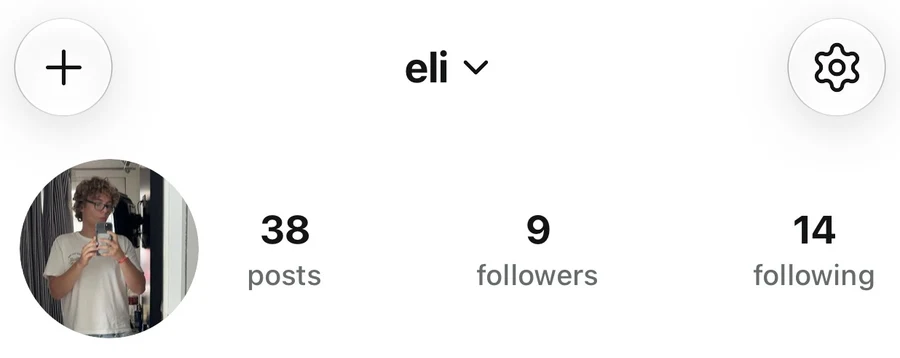
Go to your profile by tapping your profile picture on the right side of the bottom navigation bar. Tap the + in the top-left corner of your profile.
2. Switch from Photo to Thought
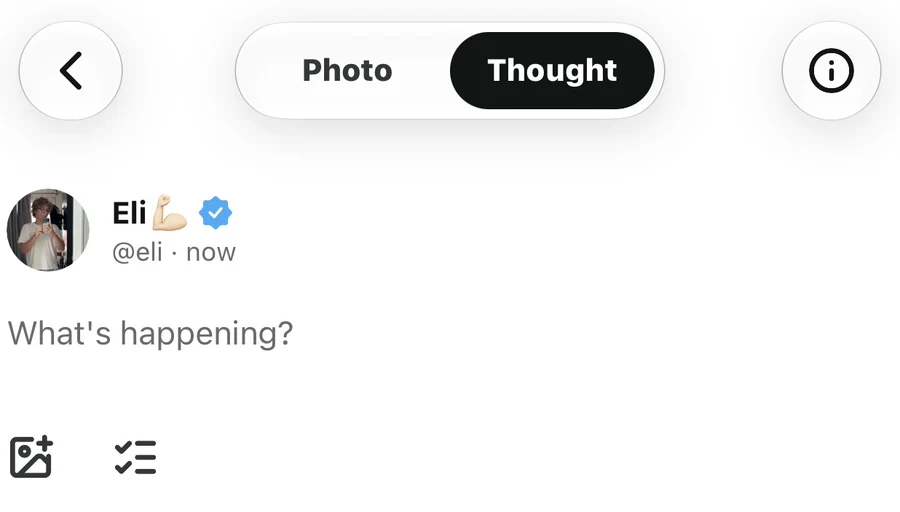
The post creator opens in Photo mode and shows your device’s photo library. You do not need to select a photo. Tap Thought in the switch at the top of the screen to open the thought composer.

3. Write your thought
Tap What’s happening? and type your message. Your name and handle appear above the text so you can see which account you are posting from.
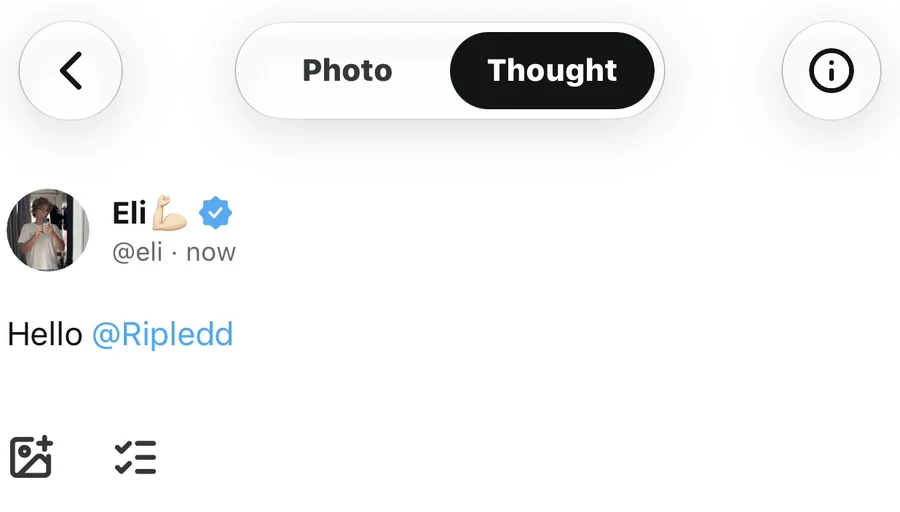
You can mention another account by typing @ followed by its username. The example below reads Hello @Ripledd.
4. Share your post
Check your text, then tap Post in the bar above the keyboard. The number beside the button shows how many characters remain from the 500-character allowance.

The music track shown in this example is optional. You can share a thought without music or photos.
Why is the Post button unavailable?
For a text-only thought, enter a message before tapping Post. If you have added a poll, complete its options before posting. If posting still fails, contact the Support Center and include any error message shown.
Still stuck? Head to the Support Center and send us the details.