How do I create a photo post?
A photo post lets you share one or more photos with an optional caption and music. You can include up to 10 photos in a single post.
1. Open the post creator
Tap your profile picture on the right side of the bottom navigation bar. On your profile, tap the + in the top-left corner.
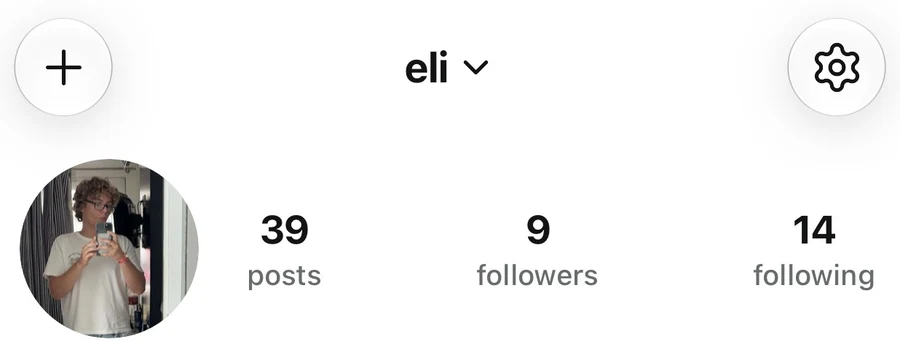
2. Select your photos
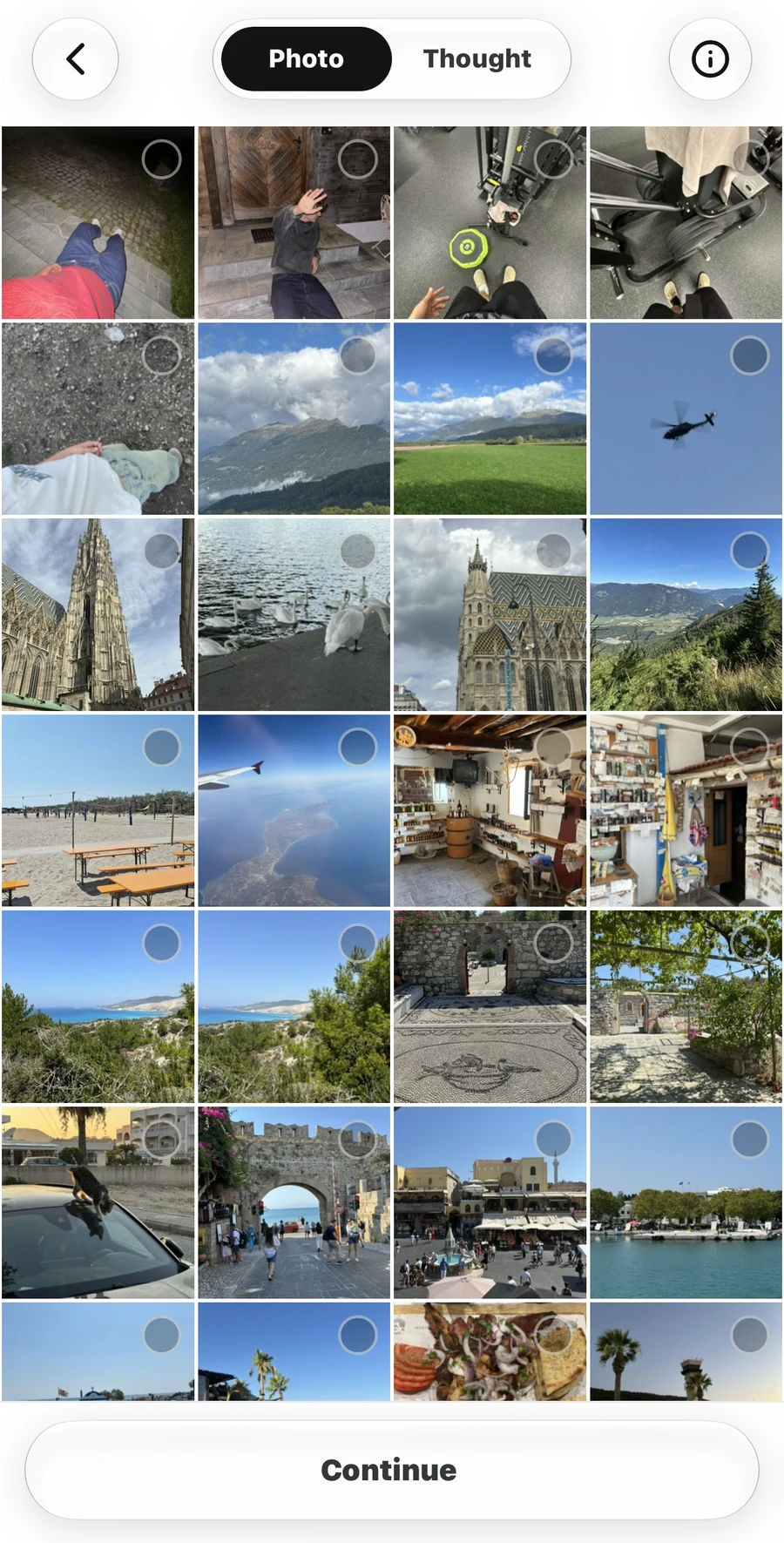
The creator opens in Photo mode and displays your photo library. If Thought is selected, tap Photo at the top to switch back.
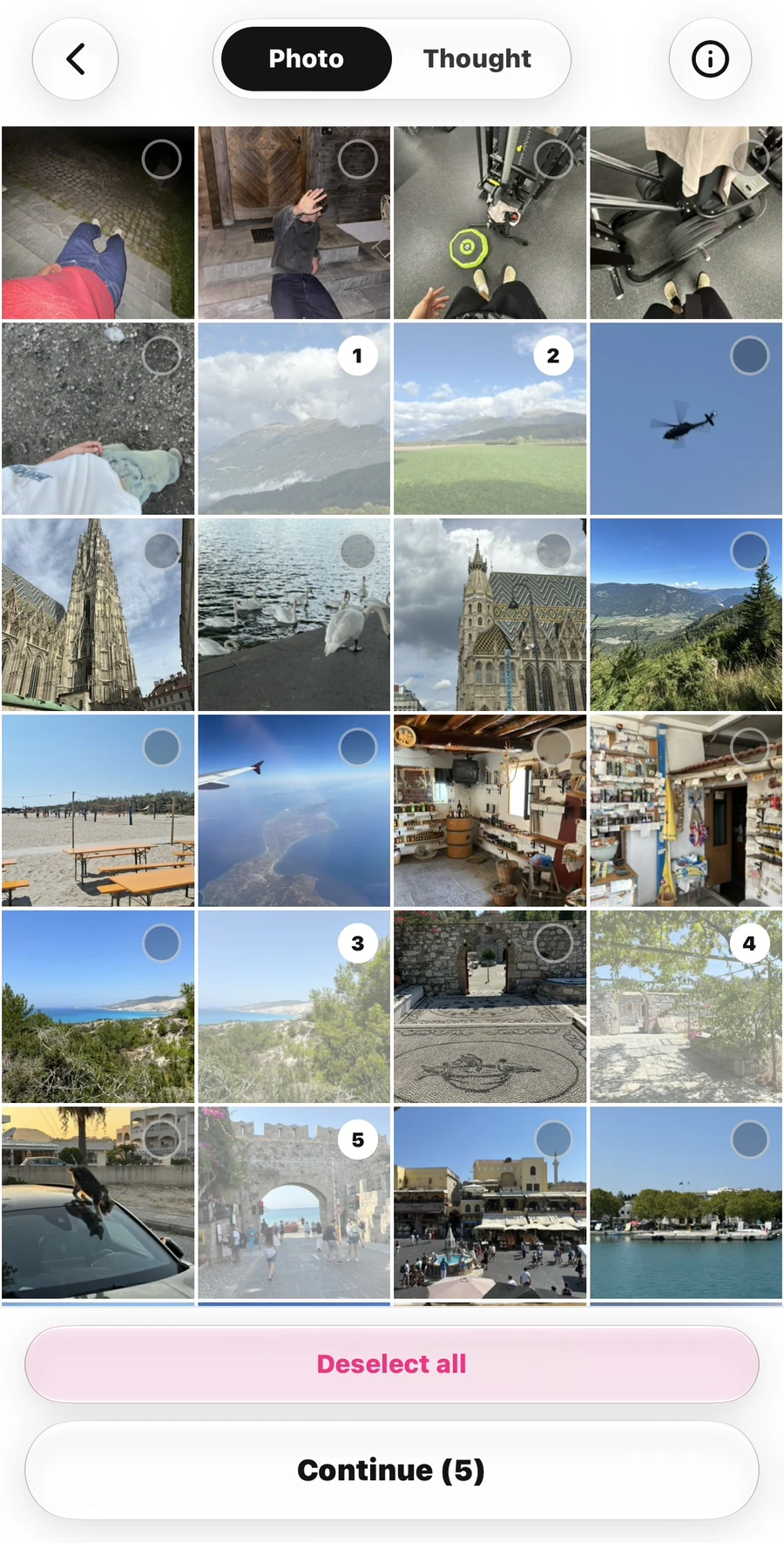
Tap each photo you want to include. Numbered badges show the selection order. Tap a selected photo again to deselect it, or use Deselect all to clear your selection. When you are ready, tap Continue. The number in brackets shows how many photos you have selected.
3. Adjust your images
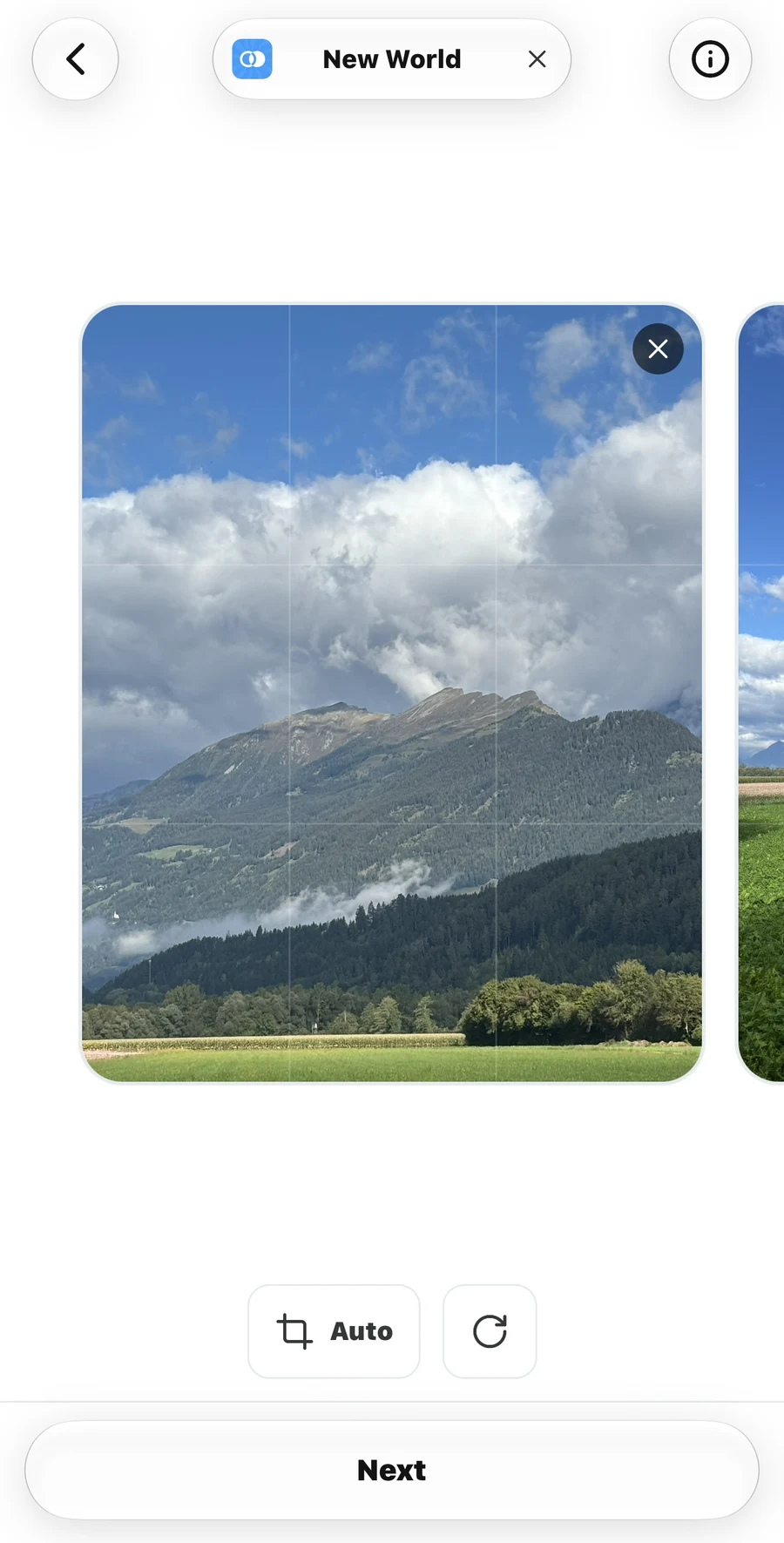
Swipe left or right to review the selected photos. Use the controls below the image to adjust how it will appear:
- Crop: tap the button labeled Auto to cycle through Auto, 4:5, 1:1, and 16:9. Auto uses the first image’s proportions. The chosen shape applies to every photo in the post.
- Rotate: tap the circular arrow to turn the photo currently in view 90 degrees clockwise.
- Remove: tap the X in a photo’s corner to remove it from the post.
Tap Next when you have finished checking your photos.
4. Review the post and add a caption
On Publish your post, swipe through the preview to check all your photos. The dots below the image show your position in the set.
Tap Write a caption… below the photo to add text. A caption is optional. The music shown in this example is also optional.
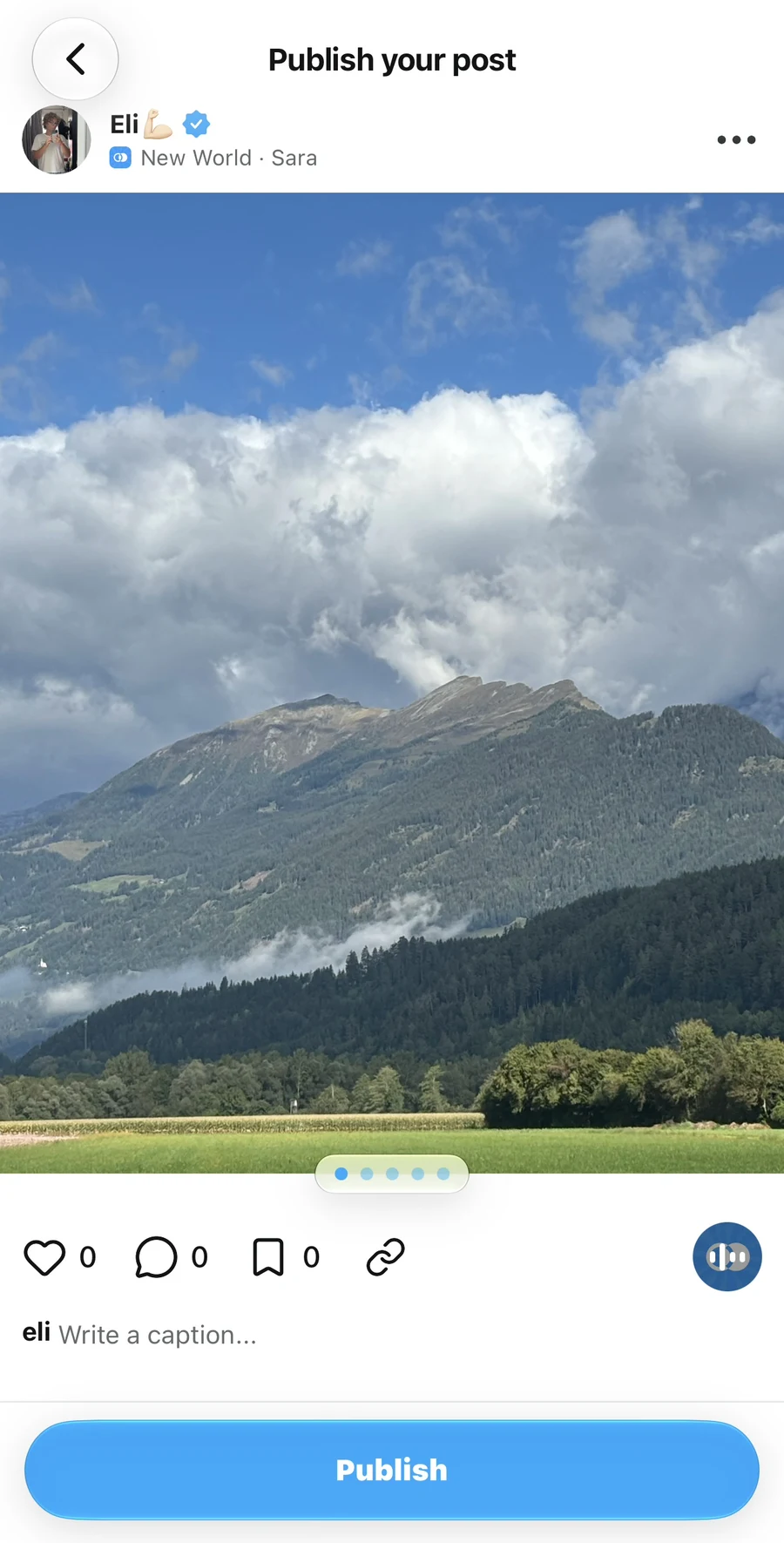
5. Tap Publish
Read your caption and check your photos once more, then tap Publish. In this example, the caption is Nature is so beautiful!
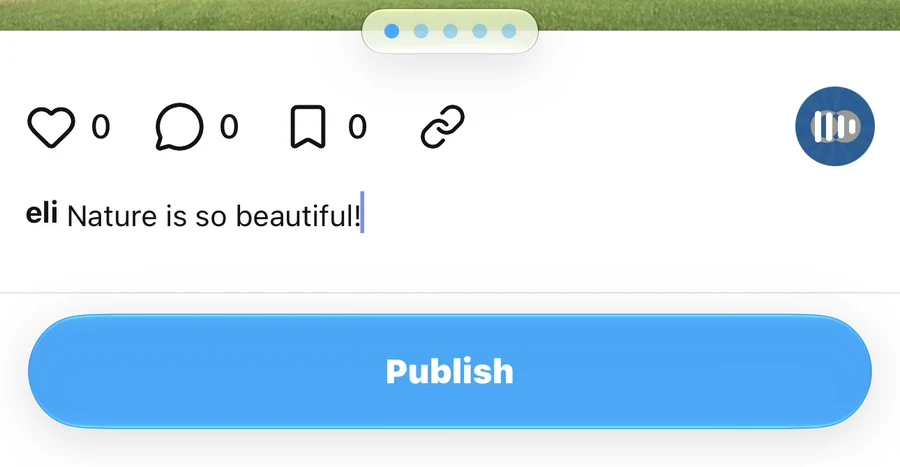
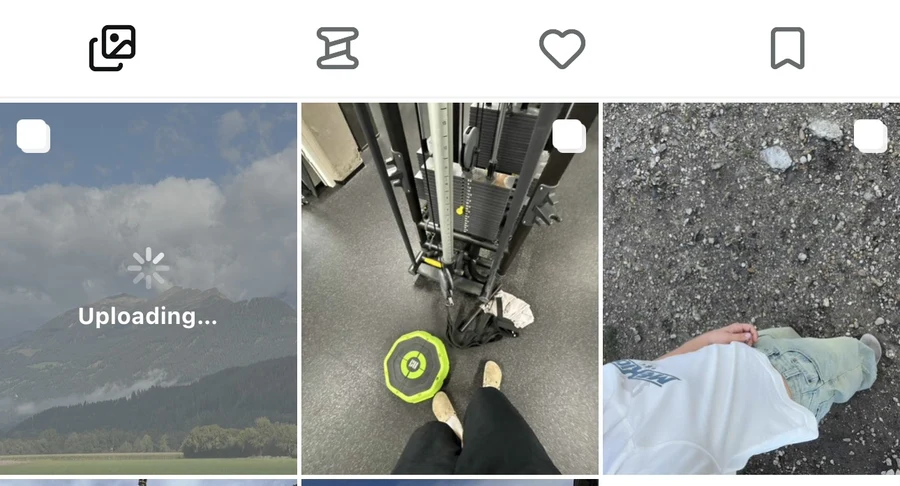
6. Wait for the upload to finish
The app returns to your profile’s photo tab. Your new post appears with an Uploading… label while the photos are being uploaded. This label means the upload is still in progress.
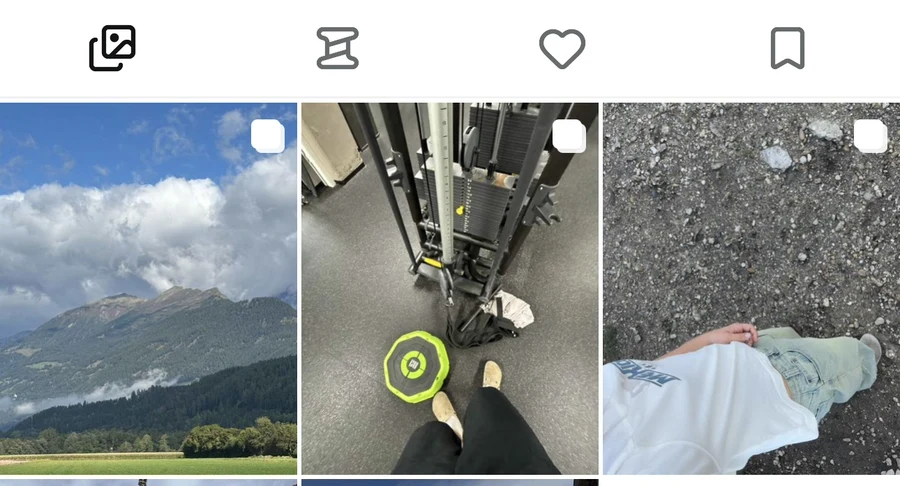
Once the upload finishes, the label disappears and the post appears in your grid. Tap it to view the published post. For a post with multiple photos, swipe left or right to move through them.
Having trouble?
Select at least one photo before tapping Continue. If your photo library is unavailable, check that Ripledd has permission to access the photos you want to share in your device’s settings.
If an upload fails, check your internet connection and follow any retry option shown in the app. If the problem continues, contact the Support Center with the error message and your device details.
To remove a published post, follow How do I delete a photo or thought post?.
Still stuck? Head to the Support Center and send us the details.